Connect Fitbit
Connect your Fitbit to Yoa
Fitbit is now part of Google, so connecting your Fitbit to Yoa means signing in with your Google account. Because our Fitbit connection is still finishing Google’s verification review (it can take a few weeks), Google shows an extra “this app isn’t verified yet” screen along the way. You can connect right now — it just takes a few more taps. Here’s exactly what to do.
It’s completely safe. Yoa only reads your Fitbit health data to show your scores, processes it on your device, and never sells it — the warning is just Google’s standard notice for apps still in review.
-
 1
1Download Yoa from the App Store
Get Yoa Health free on the App Store, then open it.
Download on theApp Store -
2
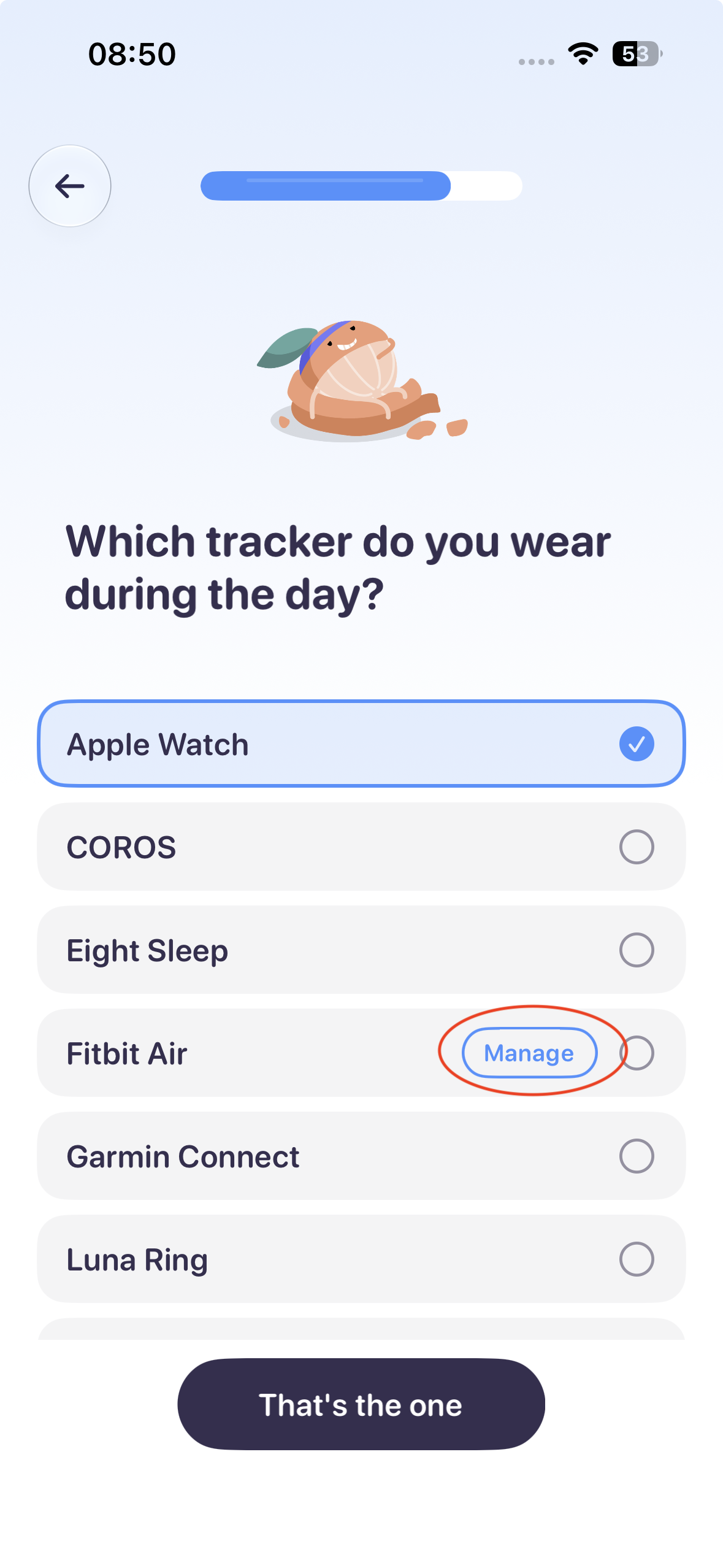
Pick Fitbit as your tracker
When Yoa asks “Which tracker do you wear?”, find Fitbit Air and tap Connect to start connecting it.
-
3
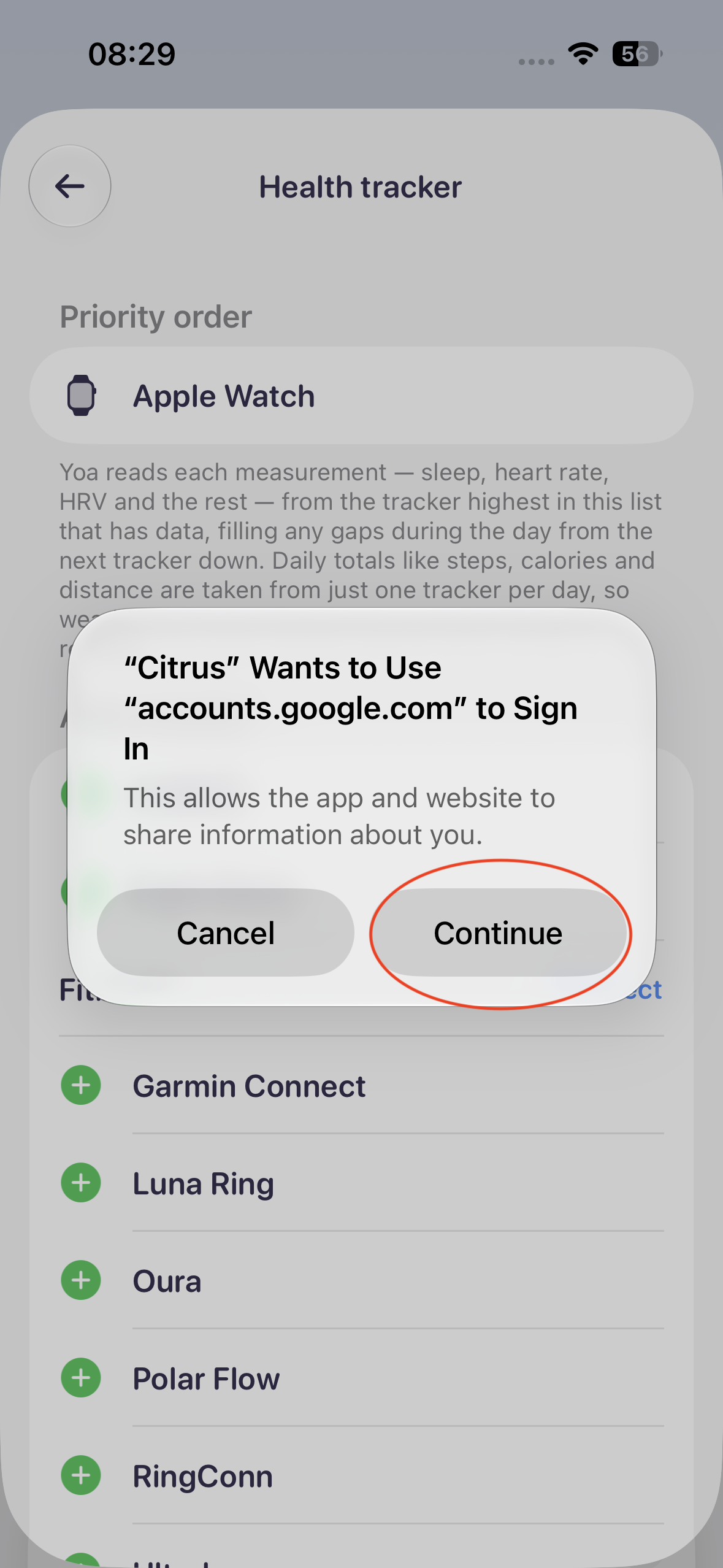
Tap “Continue” to sign in
Fitbit uses your Google account, so iOS asks to use accounts.google.com to sign in. Tap Continue.
-
4
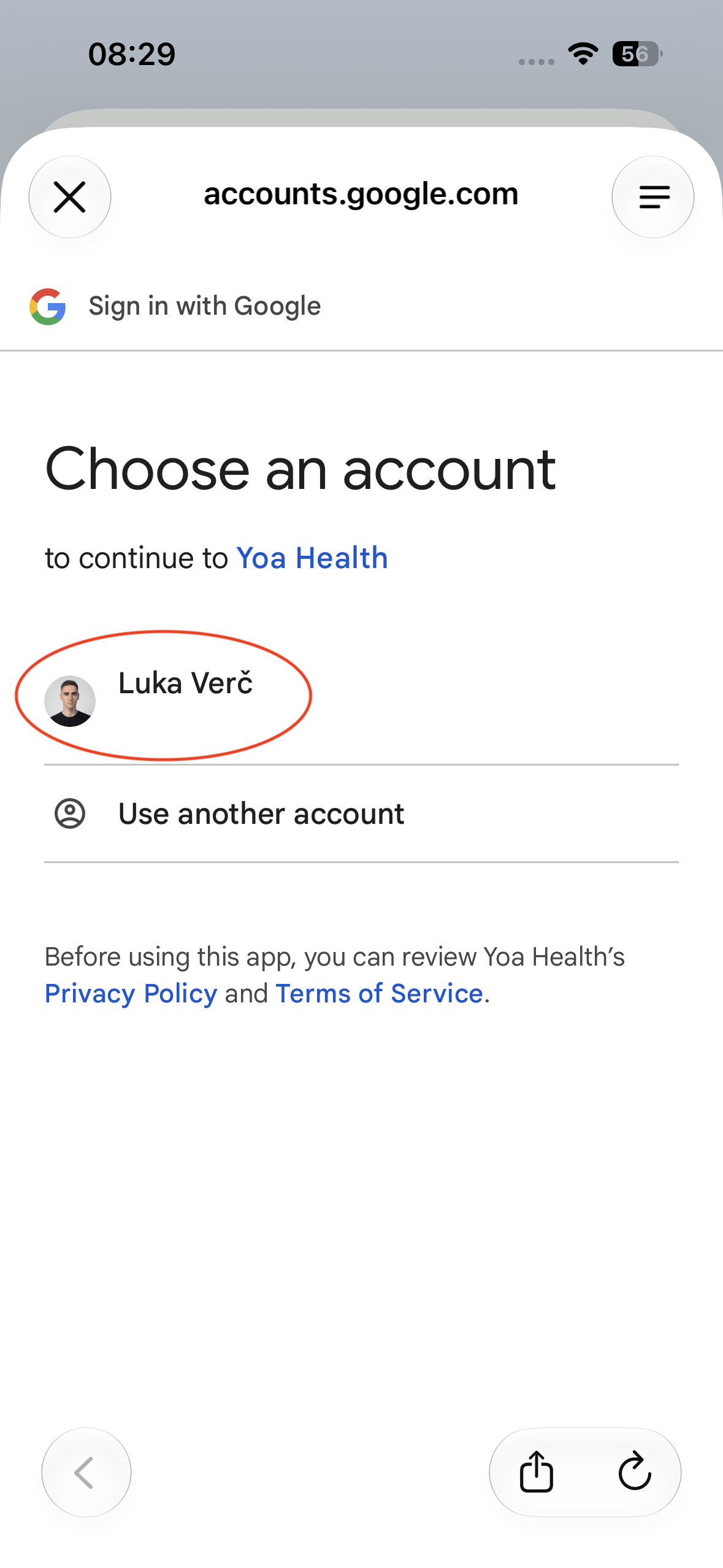
Choose your Google account
Pick the Google account that’s linked to your Fitbit.
-
5
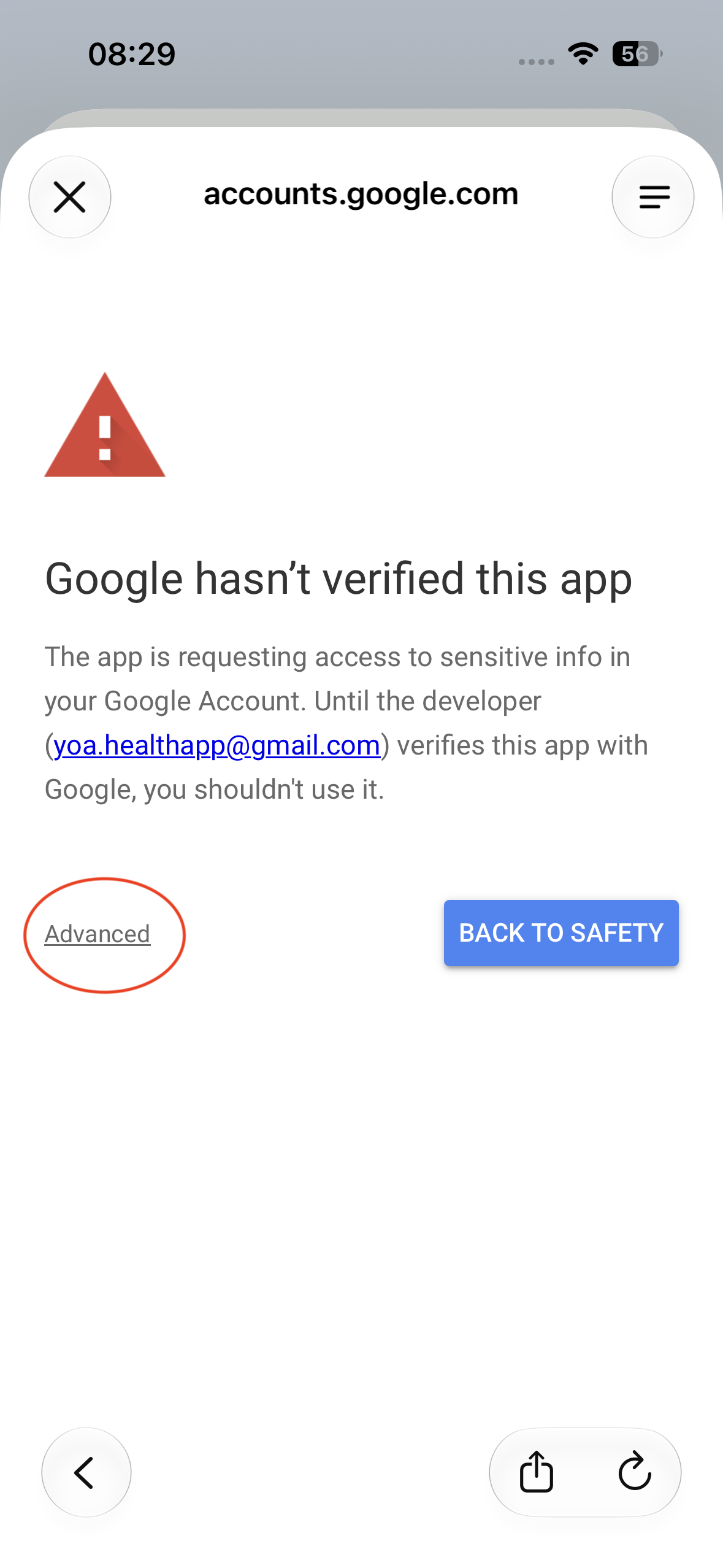
Tap “Advanced”
Google will say it hasn’t verified this app yet — that’s the review we’re waiting on. Tap Advanced in the bottom-left corner.
-
6
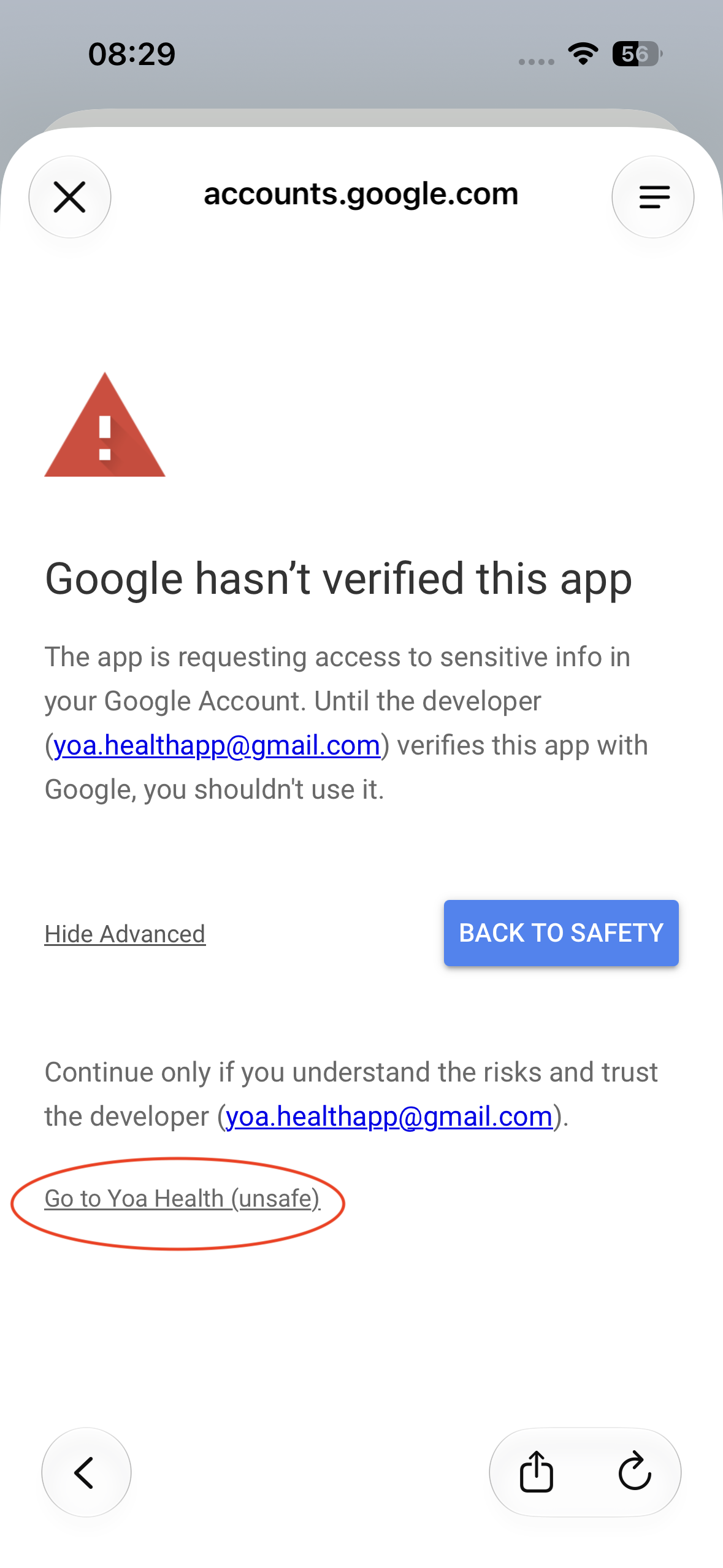
Tap “Go to Yoa Health (unsafe)”
Then tap Go to Yoa Health (unsafe). “Unsafe” is simply Google’s label for apps still in review — your data stays private.
-
7
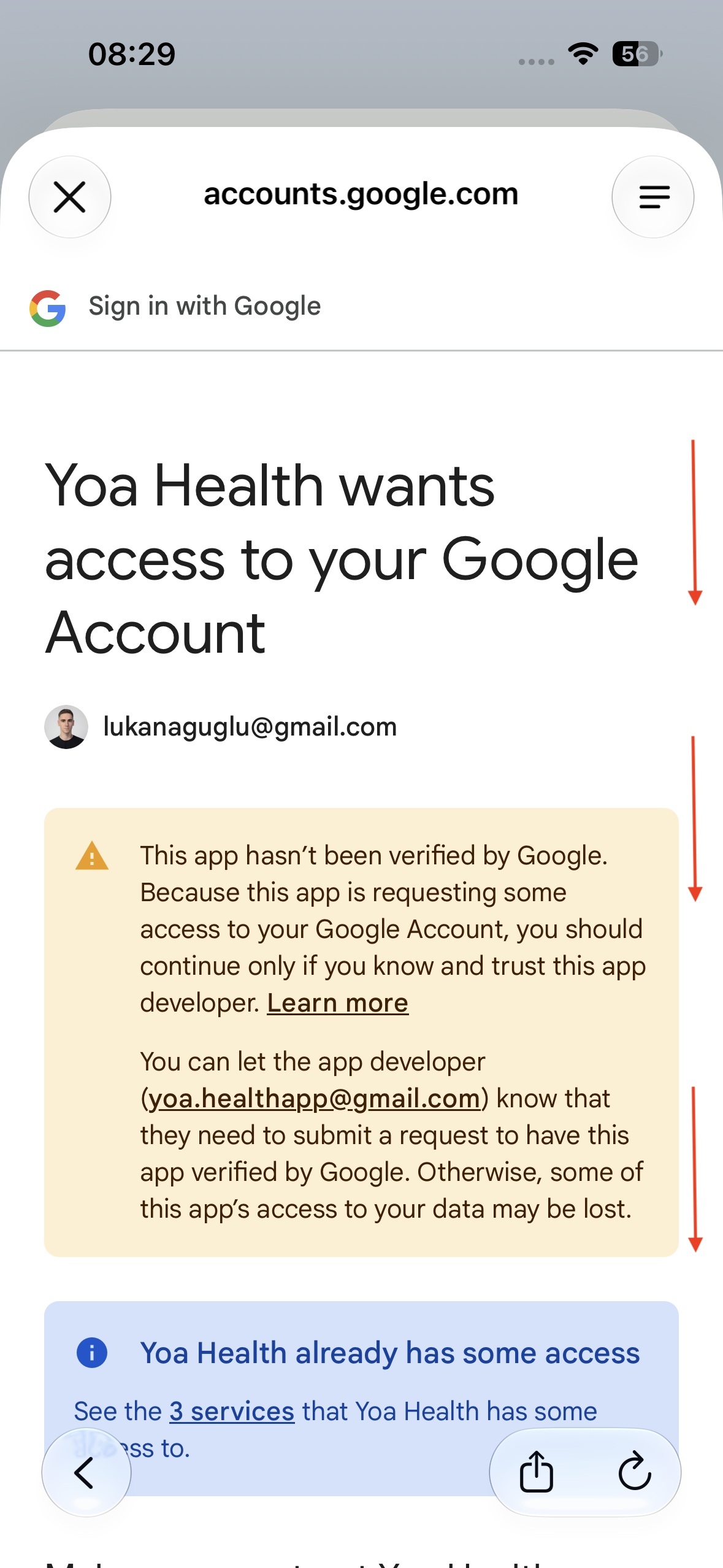
Review & scroll down
Yoa Health will ask for access to your Fitbit data. Scroll down to the bottom of the page.
-
8
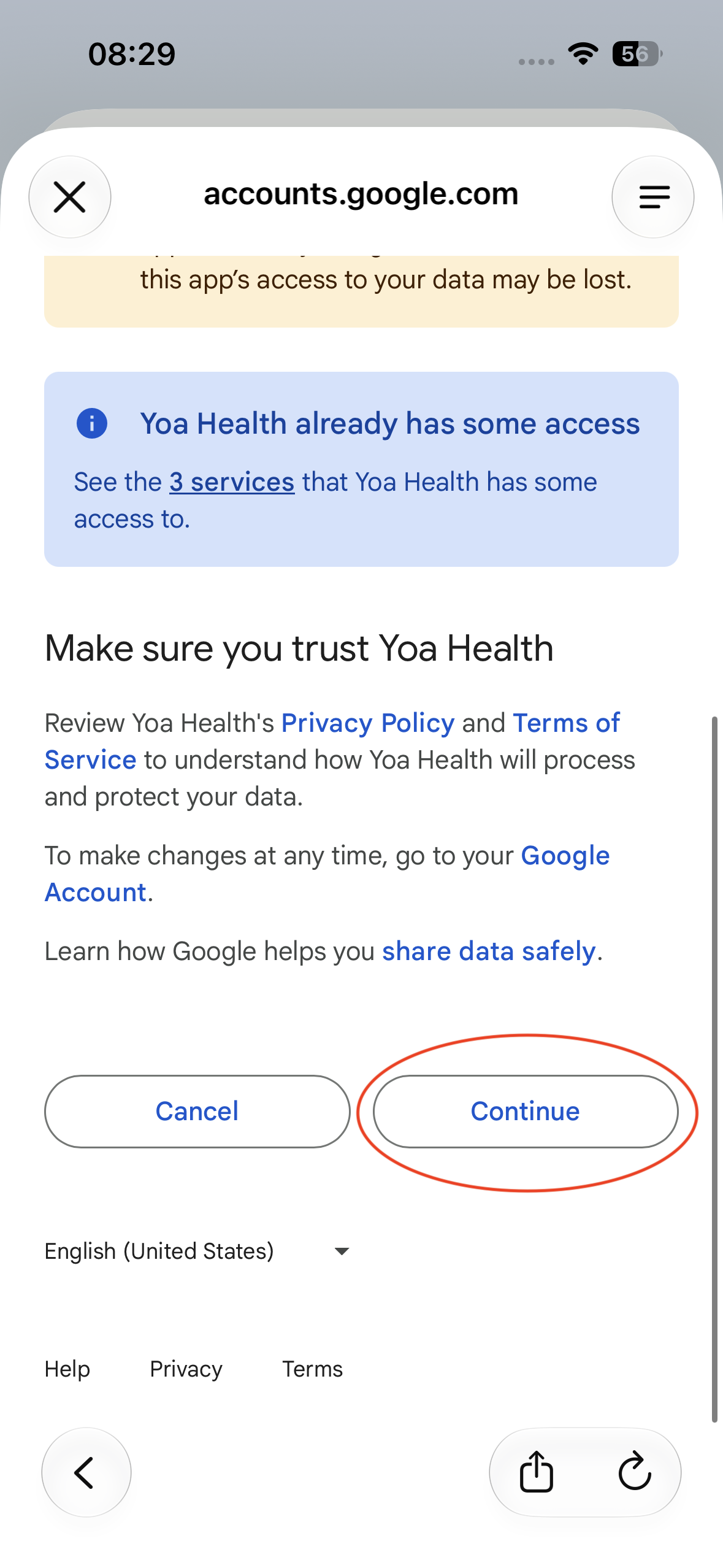
Tap “Continue” — Fitbit connected!
Tap Continue to finish. Your Fitbit is now connected and Yoa will start reading your data. 🎉

That’s it — your Fitbit is connected! 🍊
Once Google finishes verifying our Fitbit connection, these extra steps disappear. Still stuck? Email contact@getyoa.app.